Okta Verify
- 4.0
- Rating
- 10.00M
- Installs
- Free
- Price

 Analysis by App-foxy
If you are about to use Okta Verify for the first time, the most useful thing to understand is its role: it is a companion app for confirming that it is really you when an organization uses Okta for sign-in security. I found it much easier to approach once I stopped thinking of it as a general password manager or a standalone login service. Its job is narrower, and that focus is also its main strength.
Developed by Okta Inc., this free productivity app is designed for people whose employer, school, or another organization has enabled Okta-based multi-factor authentication. The store summary presents it as Okta MFA, while the short description calls it Okta Verify. In practical terms, the app sits beside the service you are trying to access and supplies an additional confirmation step.
That makes the first-use experience different from installing a normal productivity tool. You do not open it expecting a dashboard full of tasks or documents. Instead, you connect it to an organization account and then use it when a protected sign-in asks for verification. For the right user, that can turn an inconvenient security requirement into a quick habit.
You May Also Like

 Blood Strike: 2.5 Anniversary
Blood Strike’s Loadouts Turn Every Drop Into a Tactical Gamble
A close look at Blood Strike’s custom loadouts: how fast access to signature weapons reshapes its battle royale rhythm, rewards preparation, and narrows the gap between fights.

 Pandora - Music & Podcasts
Pandora’s Music Is Easy to Start, but Harder to Recover
Pandora’s strength is its low-effort path from a seed to a station. Its weak spot is how much confidence it asks you to place in connection, setup, and quiet recovery.

 8 Ball Pool
 Is Built on Rivalries, Rematches, and Routine
A close look at the rivalries, rematches, shared routines, and unanswered safety questions that turn a quick pool match into a persistent mobile community.

 Samsung Music
’s Quiet Strength Is Playing What You Already Own
Its reach comes less from spectacle than from dependable access to a personal library. That simplicity is both the app’s strongest retention engine and its ceiling.

 AccuWeather: Weather Radar
AccuWeather Review: A Quick, Clear Forecast for Everyday Decisions
For everyday plans, the best forecast is the one you can understand quickly. AccuWeather makes rain timing, radar, and local conditions easy to act on, with a few trade-offs.

 Hill Climb Racing
Why Hill Climb Racing Still Turns Crashes Into One More Run
A tiny car, a bumpy hill and one more upgrade: Hill Climb Racing keeps resurfacing because its simple chaos makes every near-miss feel personal.
More From Our News Desk



What to expect before you begin
My first recommendation is to install the app only when you already know that your organization uses Okta Verify, or when your sign-in instructions specifically direct you to it. Installing it by itself does not replace your company or school account, and it does not give you access to services that your organization has not assigned to you.
The app is free, carries an Everyone content rating, and has been available since October 4, 2011. Its reach is substantial, with over ten million installs, and its current store presence shows an average rating of 4.4 from around forty thousand ratings. Those figures suggest a well-established tool rather than a short-lived experiment, but they do not remove the need to follow your organization’s enrollment instructions carefully.
Before opening it, I would have three things ready: the device you want to use regularly, access to the account or enrollment message from your organization, and a little patience if your workplace requires an administrator-approved process. The app can be simple after enrollment while the enrollment itself depends on how that organization has configured Okta.
It is also worth deciding whether this phone will remain available when you sign in. A verification app is most useful when the device is nearby and charged. If you frequently leave your phone at home, change devices often, or cannot use personal devices for work authentication, you should check your organization’s alternative process before relying on this one.
Compared with a password manager, Okta Verify is much more focused. A password manager stores and fills credentials across many services; this app is intended to confirm an identity during an Okta-protected sign-in. Compared with receiving a one-time code by text message, an app-based confirmation can feel more direct, but it still depends on your phone and on the sign-in method your organization has enabled.
Starting the enrollment without guesswork
When I approach setup, I treat the instructions from the organization as the source of truth. The app may be installed first, but the useful connection normally begins with an enrollment step associated with your Okta account. Look for the organization’s own sign-in guidance rather than trying random account details inside the app.
A common first-time mistake is expecting the app to discover every account automatically. It is not a universal account scanner. If the organization gives you a QR code, activation instruction, or another enrollment route, use that exact route. If the instruction is on the same phone, you may need to move between screens or use a second device to display the enrollment information, depending on the process provided to you.
Once the account is connected, pause and check that the account label looks familiar. This small check matters if you use Okta for more than one organization or if you are enrolling a replacement phone. Confirming the right account at the beginning prevents a confusing situation later when a sign-in request appears and you are unsure which profile should respond.
The most important setup habit is to finish enrollment before you urgently need access. Do not wait until a meeting is starting or a deadline is approaching. A calm test sign-in gives you time to identify whether the issue is the app, the account, the device, or the organization’s authentication policy.
Your first meaningful success
For a first successful action, I would use a low-pressure sign-in to a service you already know you are authorized to access. Start the sign-in in the normal way, enter the requested account details, and then watch for the verification step. When the app is used for an approval request, open it and inspect the request before confirming it.
That inspection is more important than simply tapping the first button you see. Check that the request matches what you just attempted: the account should be recognizable, and the timing should make sense. If a prompt appears when you have not tried to sign in, do not approve it casually. Treat an unexpected request as a reason to stop and contact the appropriate organization support channel.
This is where the app’s focused design works well. It does not ask me to manage a large collection of unrelated security tools. I use it at the moment a protected service needs additional proof, then return to the service. That narrow workflow is convenient for daily access, especially when the same organization’s systems are used repeatedly.
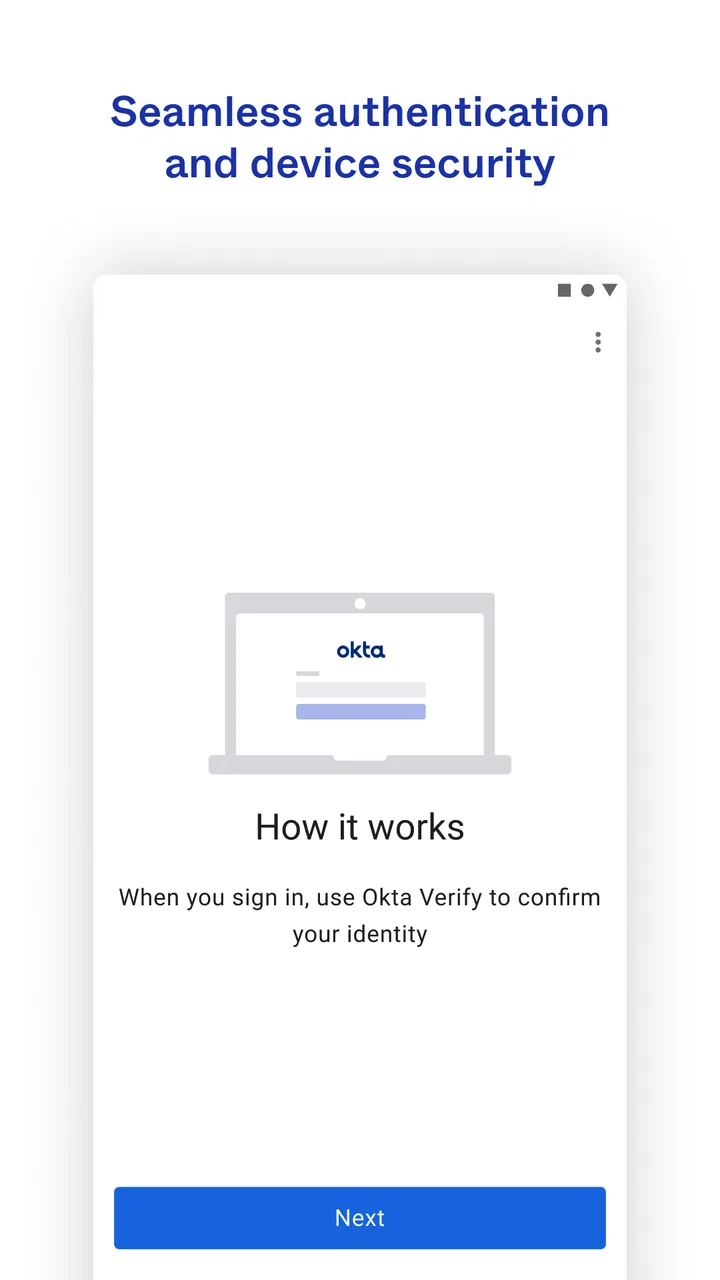
A realistic example would be starting a workday by signing in to an internal service from a laptop. The password step succeeds, the organization asks for an additional check, and the phone becomes the second part of the process. I open Okta Verify, review the request, approve only the sign-in I initiated, and continue on the laptop. Once practiced, the sequence is less disruptive than searching through email or waiting for a text message.
Where first-time users commonly hesitate
The biggest source of confusion is usually the difference between account enrollment and sign-in approval. Installing the app is only the beginning. If the account has not been enrolled correctly, the app may not be able to respond to the organization’s request. When that happens, repeatedly reopening the app is unlikely to solve the underlying problem.
Another point of confusion is assuming that every organization uses the same verification experience. Okta Verify is the app from Okta Inc., but the exact steps around it can be controlled by the organization that manages your account. One workplace may guide you through an approval request, while another may direct you through a different verification method. Follow the instructions attached to your account rather than relying on a friend’s setup.
There is also a practical difference between a prompt that arrives automatically and a code-based process that requires manual entry. If your sign-in asks for a code, enter the current code exactly as shown and avoid guessing after it changes. If the sign-in asks for approval, review the request instead of treating every notification as harmless. These are different moments in the same security workflow, and confusing them can lead to unnecessary retries.
Notifications deserve attention as well. If you are expecting a request and nothing appears, first check the obvious practical issues: is the phone connected, is the app enrolled with the correct account, and are you looking at the device that was registered? If those checks do not help, use the organization’s support route. The app cannot independently repair an account enrollment controlled by an employer or school.
Changing phones is another situation worth planning for. Do not erase the old device immediately if it is still needed to complete the organization’s transfer or re-enrollment instructions. A replacement phone may require a fresh enrollment, and the exact recovery path is determined by the organization’s security settings. Keeping the old device available until the new one works can prevent an avoidable lockout.
Small workflow improvements that make a difference
I found that the best way to reduce friction is to separate routine use from troubleshooting. For routine use, open the app only when you have initiated a sign-in and verify the request before approving it. For troubleshooting, slow down and identify which stage failed: account enrollment, notification delivery, approval, code entry, or access after verification.
That distinction is a useful advanced habit because it stops you from repeating the wrong action. If the account was never enrolled, generating or waiting for another request will not help. If the request arrived but approval did not complete, the issue may be with the sign-in session or organization policy. Naming the failed stage gives support staff a much clearer description of the problem.
If you use several Okta-connected accounts, keep their labels understandable and avoid assuming that the first visible account is the one you need. This is especially helpful for people who work with both a personal educational account and a professional account. A clear account check before approval is a small step, but it reduces the chance of confirming the wrong request.
I also recommend practicing the process from the device you normally use for work or study. A successful test on one browser or computer does not necessarily answer every question about another sign-in environment. The goal is not to test every possible situation; it is to make sure your everyday route is familiar before you need it.
Who will appreciate it, and who may prefer another route
Okta Verify is a strong fit if your organization already relies on Okta and wants a dedicated mobile confirmation step. It is particularly suitable for people who sign in to protected work or school services several times a week and want something more immediate than searching for messages or copying codes from another app.
It is less suitable if you are looking for a general-purpose authenticator for unrelated accounts. Its value depends on the organization’s use of Okta, so someone choosing a single app for many independent personal services may prefer a broader authenticator or a password manager with authentication support. Those alternatives can be more flexible outside the Okta environment, while Okta Verify is more purpose-built inside it.
I would also hesitate to recommend making it your only plan if your phone is regularly unavailable. The app is convenient when the registered device is with you, but any phone-dependent verification method creates a recovery question for lost, damaged, replaced, or inaccessible devices. Before travel or a device upgrade, learn how your organization handles re-enrollment and account recovery.
Privacy and control expectations matter too. This is an organization-connected security tool, not a private notebook or a personal productivity planner. If you are uncomfortable using a personal phone for work authentication, ask whether your organization offers another approved method. The better choice is the method you can use reliably and that fits the organization’s policy.
My conclusion after using the workflow
Okta Verify succeeds because it does not try to be everything. As a productivity app from Okta Inc., it gives Okta-based sign-ins a dedicated place for an additional identity check. The experience is usually quick once the account is enrolled, and the free price removes a common barrier for people who simply need the approved tool for work or school access.
The trade-off is that the app cannot be judged like a standalone password manager or a universal authenticator. Its usefulness is tied to an organization’s Okta setup, and the most difficult moments often involve enrollment, device changes, or account recovery rather than everyday approval. That is not a reason to avoid it; it is a reason to prepare before the first urgent sign-in.
My practical recommendation is to install it when your organization directs you to, complete enrollment while you still have access to support, and perform one deliberate test sign-in. During future requests, approve only actions you started and check the account before confirming. Those habits turn the app from an unfamiliar security hurdle into a predictable part of your login routine.
For a first-time user who already belongs to an Okta-managed organization, I think Okta Verify is a sensible and focused choice. It will not replace every security tool, and it is not the right answer for accounts outside that ecosystem, but within its intended setting it can make multi-factor sign-in feel considerably less intimidating. Its large installed base and strong average rating reinforce that it has become a familiar option, while the real test remains simple: enroll it correctly, verify the first request carefully, and keep a recovery plan for the phone you depend on.
FAQs for Okta Verify
01What is Okta Verify used for?
Okta Verify is primarily used for multi-factor authentication. It adds an extra layer of security by requiring users to verify their identity through the app, which sends a push notification or generates a time-based one-time passcode (OTP) when logging into various services. This ensures that only authorized users can access sensitive information.
02How do I set up Okta Verify on my device?
To set up Okta Verify, download the app from the App Store or Google Play Store. After installation, open the app and follow the instructions to scan the QR code provided by your organization. This links your account with the app, enabling it to send authentication requests to your device.
03Is Okta Verify free to use?
Yes, Okta Verify is free to download and use. However, its functionality is typically part of a broader Okta Identity Cloud subscription offered by organizations. The app itself incurs no additional costs, but accessing it might depend on your company’s IT infrastructure and policies.
04Can I use Okta Verify without an internet connection?
Yes, Okta Verify can generate a time-based one-time password (TOTP) even without an internet connection. This feature is crucial for users who need to authenticate but are in areas with limited or no connectivity. The app does require an internet connection to receive push notifications.
05What should I do if I lose my device with Okta Verify installed?
If you lose your device, immediately notify your IT department or the administrator managing your Okta account. They can disable your Okta Verify access on the lost device and help you set up the app on a new device. This ensures the security of your accounts and prevents unauthorized access.
Pros
- Easy setup and integration process.
- Supports multiple authentication methods.
- Seamless user experience across devices.
- Strong focus on security and privacy.
- Quick and efficient customer support.
Cons
- Limited offline functionality.
- Occasional sync issues reported.
- No dark mode option available.
- May consume considerable battery life.
- Requires frequent updates for security.

Okta Verify
Gallery